
Your clinic already has a way of writing notes. Start with those headings and their order, then build a Medical Scribe template around them. You can edit the template directly, save your own version, and test how it handles a visit before relying on it for your documentation.
Have a blank copy of your established format beside you. Remove patient details and completed findings: you need the structure and instructions, not a finished clinical note.
1. Choose a starting template
In the web app, open Templates, then Add Template. The numbered markers below show where to start: 1 is Templates in the sidebar; 2 is Add Template above the library.
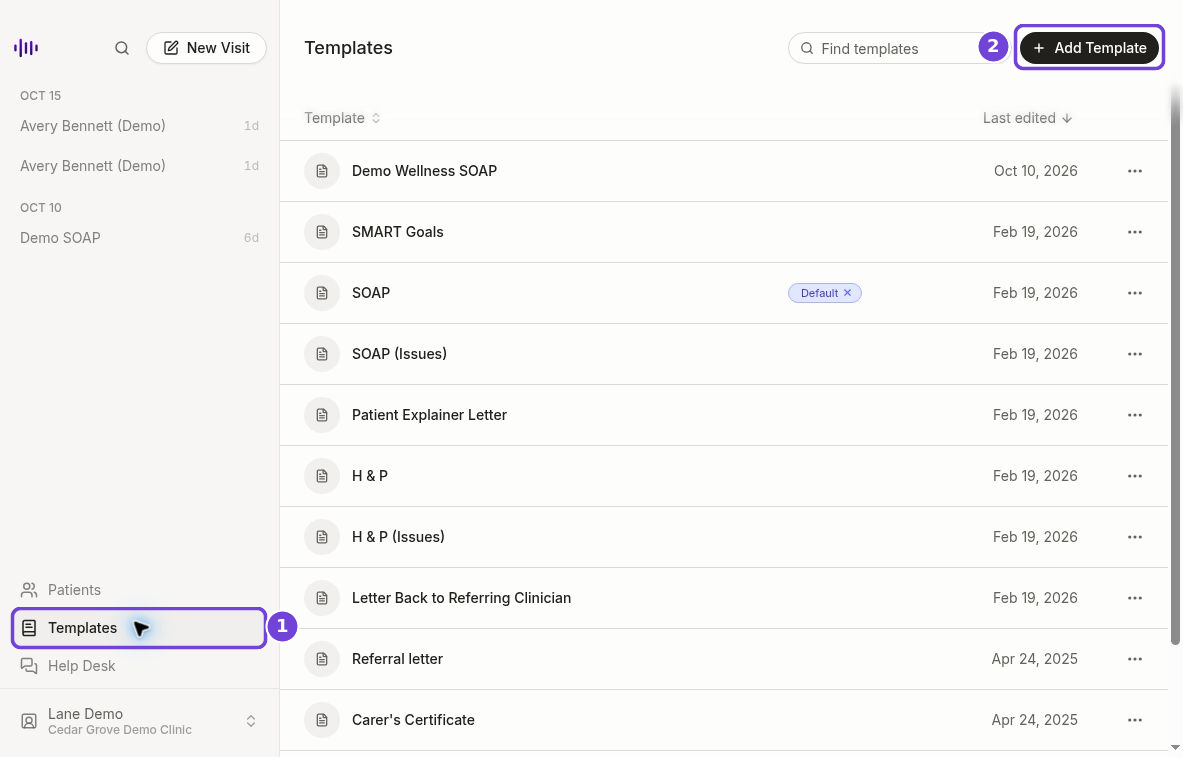
Start a new template from the library. These screenshots were captured in a staging demo clinic on October 17; the controls in this guide were checked against the published October 26 release. Demo names and template instructions are not patient records.
View the template-list screenshot at full size.
While the new template is still blank, choose Create from template. Search the library and select the closest starting point. This fills the editor with that template’s name, content, and patient-history setting. Choose the starting template before typing: the picker disappears once the new template has a name or content.
Give your version a recognizable name, such as Clinic note — format test. The starting template is a shortcut; your established blank format is the reference for the next step.
2. Preserve your headings and their order
Edit the template body directly. Work from top to bottom alongside your blank format:
- Keep the exact section names your clinic expects to see.
- Put them in the same order as your existing note.
- Keep useful instructions under the right heading. Remove instructions that belong to a different format or repeat another section.
- Describe what belongs in a section without supplying findings. Do not turn an example value or a completed finding into a default instruction.
A short instruction such as “Use these headings in this order” can make your intent explicit. Treat that as a request to test, not a guarantee that every generated note will match perfectly.
Check Include patient history deliberately. The starting template carries its setting into your new version, so confirm that it fits the sources you intend to use.
3. Save your own version
The button depends on how you opened the editor:
- Create: saves the new template you started through Add Template, including one seeded with Create from template. You return to the template list after creation.
- Save a copy: saves a personal version when you edit a system template. The editor then opens that saved copy.
- Save changes: updates a personal template you already saved.
For this walkthrough, choose Create, then reopen your named template from the list. Confirm that your headings, order, and history setting are still there. Give the template both a name and a nonempty body before saving.
4. Preview before adopting it
The screenshot below shows the three preview controls in order:
- Open Preview in the editor. On a narrow screen, find it in the Template options menu.
- Choose a visit from Select a recent visit….
- Choose Generate when you are ready to test the current instructions.
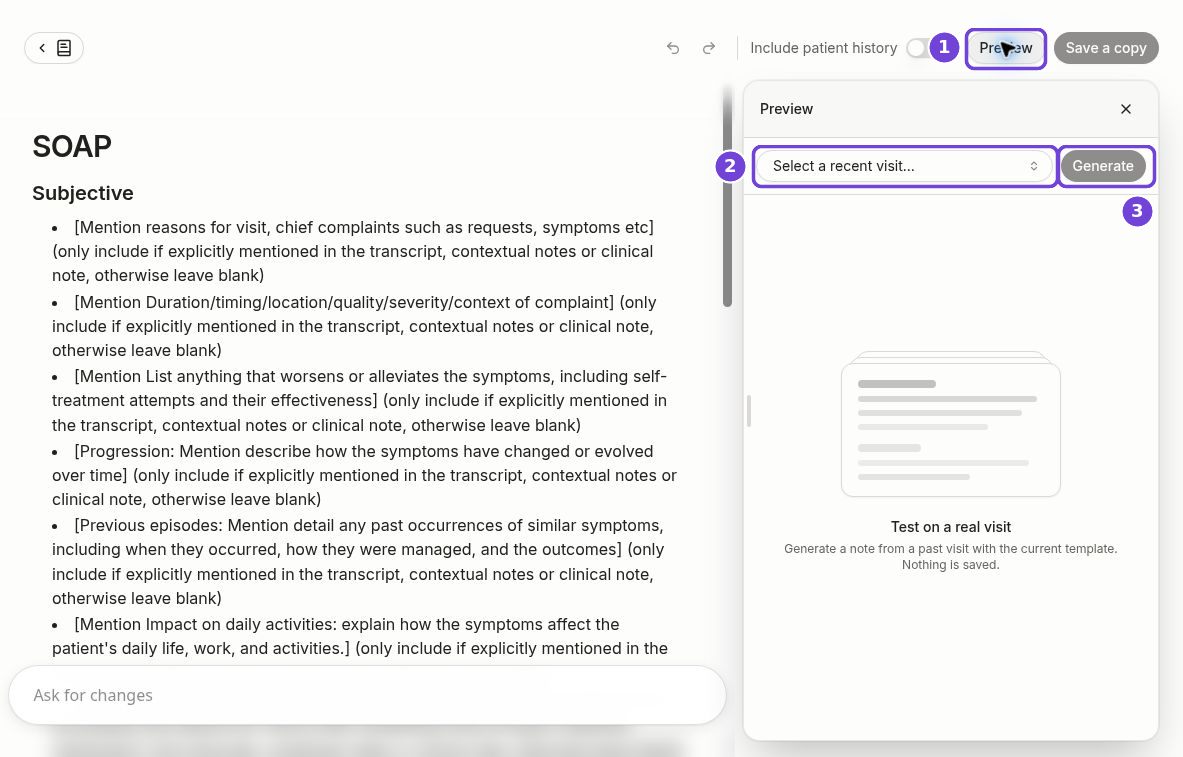
Read this screen from left to right: template instructions on the left, the preview test on the right. Markers 1–3 identify Preview, the visit selector, and Generate. This demo opens a system template, so the save button reads Save a copy; your saved personal version uses Save changes. The empty panel does not show a generated note.
View the editor and preview controls at full size.
Preview requires available credits and a visit owned by your account. The picker draws from recent visits with recordings; it is not a place to paste a blank sample. A colleague’s visit is not sufficient. If you see No recent visits, or generation is blocked because you are out of credits, you cannot complete this test yet.
The preview uses the current editor contents and patient-history setting. Its generated note is temporary: it does not save a note to the visit. Opening Preview alone does not generate a result.
Compare the result with your established format:
- Are the headings present, spelled correctly, and in the expected order?
- Is each section’s content in the right place, without unnecessary repetition?
- Does the draft stay faithful to the source material, with no unsupported findings?
- What would you still need to edit before putting this note into your chart?
If the structure needs work, adjust the template and generate another preview. Save the template changes you want to keep with Save changes; previewing does not save those edits for you.
5. Choose when to make it a default
After testing and saving your changes, return to Templates and find your named version. The Default badge shows which templates are selected for new visits. Saving your work and choosing a default are separate decisions.
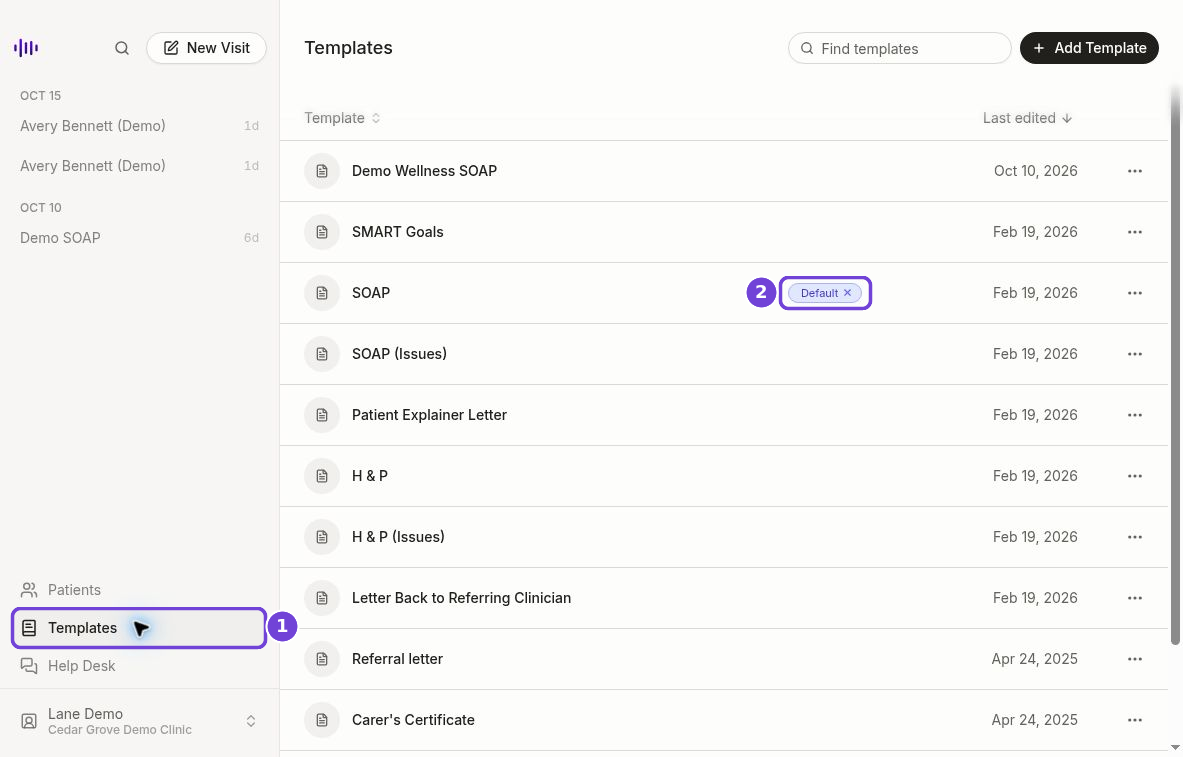
Marker 2 highlights the Default badge. SOAP is selected in this demo; the screenshot does not show your newly saved template. View full size.
When your own version is ready, open its three-dot menu and choose Set as default. Check the other Default badges too: selecting your version can leave other templates selected. If you intend to replace one, use that template’s Remove as default option. Keep your current selection while you are still testing.
Keep the review step
A familiar format makes a draft easier to inspect, but a single successful preview does not establish that every visit will work the same way. Check the template on the kinds of visits you intend to document, and review each generated note before finalizing it.
Format fit is a practical concern: clinician interviews about another vendor’s ambient documentation pilot identified limited customization as a source of extra editing. That study and the related pilot evaluation are not Medical Scribe results. Use your own preview review to decide whether your template is ready for your workflow.
Open Medical Scribe’s template library to start with your blank format beside you.